
A school kiosk is a computer in a public hallway, and it should be secured like one. That means locking down the device, putting it on its own network segment, controlling who can change what it shows, keeping student information off the screen unless you have the right to show it, and holding the vendor to written security commitments. None of this is exotic. Most of it is a checklist your IT lead can finish in an afternoon, provided you start before the screen goes on the wall.
This guide covers interactive touchscreens, lobby displays, trophy cases and digital signage together, because they share the same risks. It is written for administrators, athletic directors and IT staff who are buying or already running one.
Touchstone-dsCelebrate Achievements With ConfidenceTouchstone helps schools showcase academic and athletic milestones through customizable digital Hall of Fame displays built for community connection.Explore Touchstone
TL;DR
- The main risks are malware, hacked or defaced content, accidental display of sensitive information, and outages that interfere with emergency messages.
- Lock the device down: approved software only, unused accounts and features off, a lockable enclosure, and strong sign-in with two-step verification for administrators.
- Put displays on a separate network segment and route every content change through a defined review and approval process.
- Treat student data carefully. FERPA restricts disclosing personally identifiable information from education records, so recognition content needs a consent or directory-information decision.
- Before you buy, ask for written commitments on security updates, vendor access, accessibility and ongoing maintenance.
Table of Contents
- What can actually go wrong with a school kiosk
- How digital signage security differs from general school security
- Lock down the device and the software
- Secure the physical installation
- Separate the network and control the content
- Student privacy on the screen
- Monitor, update and respond
- What to ask a kiosk vendor before you buy
- Our perspective: secure by design, boring by design
- Where Touchstone fits
- A one-page security checklist
- FAQ
- Sources
What can actually go wrong with a school kiosk
It helps to be specific about the threats, because they are different problems with different fixes. Harvard’s privacy and security office lists the main digital signage risks: malware compromise, hacking to display inappropriate, false or offensive content, accidental public display of sensitive information, and power, network or software failures that can affect emergency notifications.
In a school, each of those has a recognizable face:
- Malware: an internet-connected display that is not regularly updated is the easy target. Harvard notes that signage can be compromised this way, especially when it is not kept current.
- Defacement: a poorly secured system can be hacked to show offensive or false messages, which damages reputation and can cause panic in a building full of students and visitors.
- Accidental exposure: a staff member uploads a spreadsheet, a slide with a roster, or a photo caption with more detail than intended, and it sits on a public screen all day.
- Physical abuse: kids poke, pull, and lean on touchscreens. Theft and tampering are real in high-traffic hallways.
- Failure at the wrong moment: a screen that freezes or goes blank when you need it to carry an alert.
Notice that only one of these is a classic hacking story. Three of the five are about people and process, which is good news, because those are the cheapest to fix.
How digital signage security differs from general school security
When people search for school security, they usually get results about cameras, access control, alarms and visitor management. Those protect the building and the people in it. A kiosk or display is a different asset class: it is a networked computer that talks to the public and to your own systems at the same time.
That changes the questions you ask:
- Access control asks who may enter. Display security asks who may change what the screen says, and what the screen can reach.
- Camera systems record what happens. A display publishes what you tell it to, so a mistake becomes visible to everyone walking by.
- A door lock fails closed. A screen that is compromised may fail loudly and publicly.
In practice, treat every kiosk as three things at once: an endpoint (a computer that needs patching), a publishing channel (a medium that needs editorial control), and a physical fixture (an object that needs to survive students). The sections below take them in that order.
Lock down the device and the software
The goal is a machine that does one job and cannot be talked into doing another.
Run only approved software
The South Australian Department for Education’s ICT cyber security standard, published in March 2025, requires application whitelisting across all workstations and servers, which restricts unapproved executables, software libraries, scripts and installers. It is an Australian standard, not a U.S. rule, but the principle transfers directly: a kiosk has no reason to install anything, so allow only the kiosk application and block the rest.
Switch off what you do not use
The Outdoor Advertising Association of America’s digital signage security guidelines (2022) recommend defense in depth: build security in from the start and lock systems down by default by disabling unused accounts and features. Practical translation for your IT lead:
- Remove default and shared accounts and any account that belonged to a former employee or installer.
- Disable USB ports, remote desktop and any service the display does not need, or restrict them to administrators.
- Run the display in a locked kiosk mode so a student cannot reach a desktop, file browser or browser address bar.
- Turn on automatic updates for the operating system and application, or schedule a monthly patch window and put it on the calendar.
Protect the administrator login
Most kiosk incidents start at the back end, not the touchscreen. Google’s K-12 cybersecurity guidebook advises secure authentication, including strong passwords and two-step verification, along with up-to-date operating systems and applications. Apply that to whoever can log in to the content system, and give each person their own account so changes can be traced.
If you are also building a student-facing security program, this overview of student cybersecurity basics is a useful companion for the broader habits behind it.
Secure the physical installation
Harvard’s guidance says to place signage where it is visible but not prone to theft, tampering or accidental damage, and to use lockable enclosures and shatterproof materials in high-traffic areas. That is the standard to hold a hardware vendor to.
A few things we would check on a walk-through before any screen is mounted:
- Where do the cables and power run, and can a student reach the ports or the power strip?
- Is the mount rated for the weight and for leaning, and are the fasteners tamper-resistant?
- Is the glass protected, and can staff clean it without removing the cover?
- Is the display in sight of a front office or a camera, without becoming a hiding spot?
- Is the height right for everyone? Reach ranges matter for accessibility, and our guide to ADA compliant kiosk reach ranges walks through the sizing.
Wall-mounted and floor-standing units fail differently. A wall mount keeps the hardware out of reach and lowers tip-over risk. A floor stand is easier to relocate but needs stable footing and a plan for the cabling. Pick based on the hallway, not the catalog.
Separate the network and control the content
Put displays on their own segment
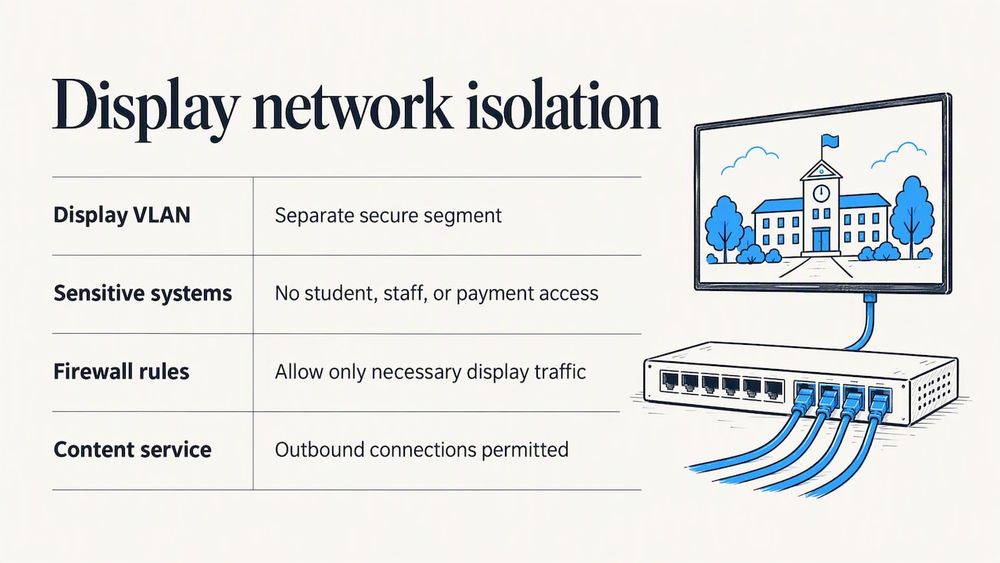
Harvard recommends placing signage devices on a separate, secure network segment isolated from sensitive data and systems. If someone does compromise a lobby screen, they should find nothing next door: no student information system, no staff file shares, no payment systems. Ask your network administrator to create a VLAN or equivalent with firewall rules that allow only the traffic the display needs, such as outbound connections to the content service.
Give content a formal path to the screen
The same Harvard guidance calls for a formal process for content creation, review and approval, with clear roles and responsibilities. For a school, that can be simple:
| Role | Does | Does not |
| Contributor (coach, teacher, club sponsor) | Submits a photo, record or announcement | Publish directly |
| Reviewer (athletic director, communications lead) | Checks accuracy, tone, student privacy | Change system settings |
| Publisher or administrator | Approves and posts, manages accounts | Share their login |
Three roles, written down, will prevent most of the embarrassing screens. Cloud-based content management makes this easy because contributors never need access to the device itself, and you can update every screen from one place instead of walking to each one.
Decide what the screen shows when something breaks
Harvard suggests configuring signage to default to a safe, neutral message if connectivity is lost. The OAAA guidelines add a principle worth remembering: a disabled, secure system is better than a compromised one, and automatic fallbacks should exist if any part of the system is compromised. So decide in advance: if the content feed is lost or looks wrong, does the screen show the school logo, or go dark? Either is fine. A frozen half-loaded page is not.
If your displays carry emergency messages, test that path on a schedule and keep it separate from recognition content.
Student privacy on the screen
Security is not only about attackers. A perfectly secure kiosk can still publish something it should not.
The U.S. Department of Education’s Student Privacy Policy Office explains in a letter to Hunter College that FERPA generally prohibits disclosing personally identifiable information from education records without consent, and that no exception permits publicly disclosing identifiers such as grades or part of a Social Security number. The same letter notes that posting is not a problem when the information is not personally identifiable. An education record, in general terms, is a record that directly relates to and identifies a student, in any format, as this university compliance reference puts it.
What that means for a recognition display:
- Decide which fields you show. Name, sport, graduation year and a photo are very different from grades, ID numbers or disciplinary details.
- Use your directory-information policy. FERPA lets schools designate directory information, and the Department of Education’s FERPA FAQ discusses how families can opt out of those disclosures. Confirm with your district or counsel which categories you have designated, and honor opt-outs before a name goes on the wall.
- Get written consent for anything beyond that, such as a personal story, a quote or a photo in a context you have not covered.
- Keep the touchscreen from becoming a search tool into your records. A public kiosk should present curated content, never a live window into a database.
Student recognition is where this matters most. Halls of fame, honor rolls and record boards are built from names and achievements, which is exactly why the consent decision should be part of the setup rather than an afterthought. If you are running social feeds on a display, our guide to social media on school displays covers moderation, which carries the same logic as the approval table above.
Monitor, update and respond
Security is a routine, not a purchase. Harvard recommends secure remote management tools, alerts for unauthorized or unusual activity, regular review of access logs, and keeping operating systems and signage software patched. For a school with several kiosks, or several campuses, a workable rhythm looks like this:
- Weekly: glance at the dashboard, confirm every screen is online and showing current content.
- Monthly: apply updates, review who has accounts, remove anyone who left.
- Each semester: review the approval roles, test the fallback message, check physical mounts and enclosures.
- After any incident: take the screen offline, change administrator credentials, review the logs, and record what happened and what changed.
Write the incident step on one page and put it where your IT lead and front office can find it. The first time a screen shows something wrong, nobody should have to guess who unplugs it.
What to ask a kiosk vendor before you buy
A short list of written questions saves you from most regrets. Rice University’s digital accessibility office recommends a set of pre-purchase steps for kiosks: get an ACR/VPAT and a live accessibility demonstration, seek an ISO-style security review covering device management, patching, data protection and vendor access, confirm compatibility with your existing systems, and require contractual commitments for fixing accessibility defects, providing security updates and maintaining the kiosk. Adapted for a school office, that becomes this list:
- How are security updates delivered, and who is responsible for applying them?
- How does the vendor access your system for support, and can you see and revoke that access?
- Where is content stored, and who can reach it?
- What happens to the display if the network drops?
- Does the content system support individual accounts, two-step verification and role-based permissions?
- Can you get an accessibility conformance report and see the kiosk demonstrated live?
- What does the contract say about maintenance, and what does it cost over five years, not just on day one?
That last question is why we built our pricing around bundles rather than recurring fees. Our wall-mounted and floor-standing touchscreen bundles are one-time purchases: wall-mounted bundles run $3,100 to $4,900, and floor-standing bundles run $3,550 to $4,300.
Our perspective: secure by design, boring by design
We build digital halls of fame, donor walls, record boards and yearbook archives for schools, and we are a family-run team that works directly with customers. Here is how we think about security on a recognition display.
The best kiosk is a boring one. It does one job, shows content your people approved, and has no way to wander off into anything else. Recognition displays are a good fit for that model because the content is curated. Nobody needs a public screen to pull live records, so we would argue against building one that does.
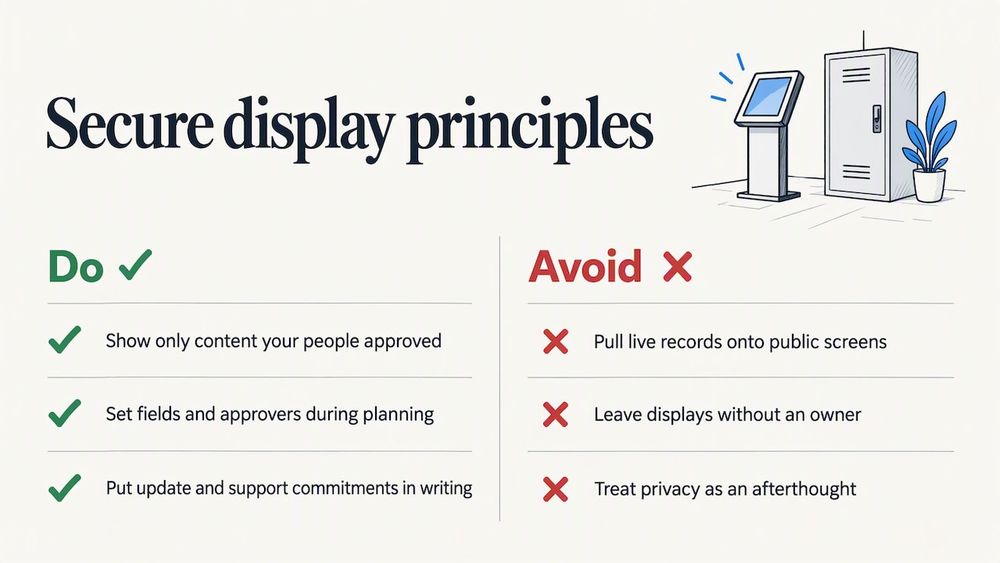
We also think maintenance is a security question. Displays that nobody owns fall out of date, and out-of-date displays are the ones that cause trouble. That is a big reason we offer our platform with no maintenance costs and continuous updates, so a school does not have to choose between a patch schedule and a budget line. Ask any vendor, us included, to put its update and support commitments in writing.
Finally, privacy is part of the design conversation. When we plan a hall of fame with a school, the first practical questions are which fields appear and who approves each entry. Pride in a student’s achievement should never turn into exposure of their information.
— Gardner Gendron
Where Touchstone fits
If you are planning a new display, the sections above give you the checklist. If you want a recognition kiosk built around curated, brand-integrated content, start with our Touchscreen Software and Digital Athletic Hall of Fame pages, or see the whole range at Touchstone Digital Solutions. Bring your security questions to the first call. We would rather answer them before installation than after.
For the practical setup side, our step-by-step guide to setting up touchscreen lobby software shows what a rollout involves.
A one-page security checklist
- Kiosk mode on, desktop and browser access blocked.
- Only approved applications allowed; unused accounts, ports and services disabled.
- Individual administrator accounts with strong passwords and two-step verification.
- Display on its own network segment, away from student and staff systems.
- Written content approval roles: contributor, reviewer, publisher.
- Neutral fallback message defined and tested.
- Lockable enclosure or secure mount, tamper-resistant fasteners, protected glass.
- Student data limited to approved fields, with consent and opt-outs honored.
- Monthly updates and account review, with a written incident step.
- Vendor commitments on updates, support access and maintenance in the contract.
FAQ
Do school kiosks need to be on a separate network?
Yes, that is the safer approach. Harvard’s digital signage guidance recommends placing signage on a separate, secure segment isolated from sensitive data and systems. If the display is compromised, the attacker then has nowhere useful to go.
Can we put student names and photos on a hall of fame display?
Often yes, but make it a deliberate decision. FERPA restricts disclosing personally identifiable information from education records without consent, so check which information your district has designated as directory information, honor opt-outs, and get written consent for anything beyond that. Your district’s counsel or privacy officer has the final word.
What is the most common way a school display gets compromised?
Outdated software and weak administrator logins are the usual suspects. Harvard notes that signage that is internet-connected or not regularly updated is more exposed to malware. Two-step verification, individual accounts and regular patching cover most of that risk.
What should a display show if the internet goes down?
A safe, neutral message, such as your school logo or name. Harvard recommends configuring signage to default to a neutral message when connectivity is lost. Test it once a semester so you know it works.
What should we put in a kiosk contract?
Written commitments on security updates, vendor access to your systems, accessibility defect fixes and ongoing maintenance. Rice University’s accessibility guidance recommends requiring exactly these, and asking for an ACR/VPAT and a live demonstration before you purchase.
Sources
- Best Practices: Digital Signage, Harvard University Information Technology
- Digital Signage Security Guidelines, OAAA (2022)
- ICT cyber security standard, South Australia Department for Education (March 2025)
- K-12 Cybersecurity Guidebook, Google (2024)
- Letter to Hunter College, U.S. Department of Education Student Privacy Policy Office
- FERPA Frequently Asked Questions, U.S. Department of Education
- IT Laws and Regulations Compliance Reference, Stephen F. Austin State University
- Digital apps and kiosks, Rice University Digital Accessibility