
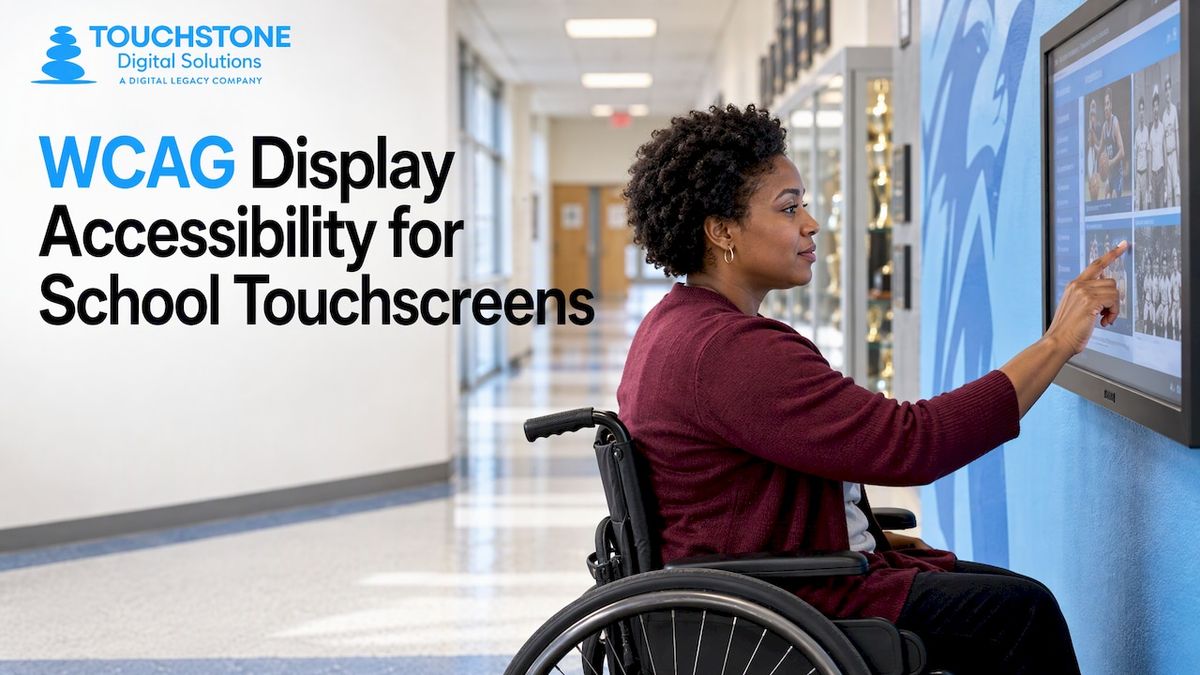
WCAG display accessibility means building and testing what appears on a screen so that students, alumni, families and visitors with disabilities can see it, reach it and use it. For a school touchscreen, that covers text contrast, button size, gestures, captions, screen height and more. The standard was written for the web, but it applies to interactive displays too. If your school is putting a Hall of Fame, trophy case or donor wall on a touchscreen, you should ask for accessibility built to WCAG 2.1 from the first design draft. Touchstone Digital Solutions designs every display to ADA (WCAG 2.1) standards for that reason.
This guide is for administrators, athletic directors and alumni staff, not developers. It explains what the standard says, which parts matter on a touchscreen in a hallway, what U.S. law expects from schools, and how to check a display before it goes on the wall.
Touchstone Digital SolutionsMake School Displays AccessibleTouchstone designs custom recognition displays to ADA (WCAG 2.1) standards, with accessible software for your school’s story.Schedule A Demo
TL;DR
- WCAG is the international yardstick for accessible digital content, and its own text says it covers kiosks as well as desktops and mobile devices.
- Level AA is the target most organizations choose. It includes every Level A requirement.
- For public schools and universities, the Department of Justice’s ADA Title II rule sets WCAG 2.1 Level A and AA as the technical standard for web content and mobile apps.
- On a touchscreen, the criteria that bite are contrast, target size, simple gestures, captions and a mode that does not depend on sight.
- Test with real people and assistive technology, not only with a scanning tool.
Table of Contents
- What WCAG means on a touchscreen
- Conformance levels: A, AA and AAA
- The success criteria that matter most on a school display
- Hardware matters as much as software
- What U.S. law expects from schools
- How to check a display before it goes on the wall
- Promo
- Perspective
- Design habits that keep a display accessible over time
- FAQ
- Sources
What WCAG means on a touchscreen
WCAG stands for Web Content Accessibility Guidelines. The World Wide Web Consortium (W3C), the body that sets web standards, publishes them. Version 2.1 and the newer 2.2 organize requirements under four ideas: content must be perceivable, operable, understandable and robust. Each idea breaks into testable rules called success criteria, and each criterion carries a level: A, AA or AAA.
A Hall of Fame display is a good example of why this matters. A visitor may have low vision, may be color blind, may use a wheelchair, may have limited use of their hands, or may be deaf and watching a video of a championship team. WCAG 2.2 says its guidelines address blindness and low vision, deafness and hearing loss, limited movement, speech disabilities, photosensitivity and some cognitive limitations, on any kind of device, including kiosks.
The Justice Department’s definition is just as broad. Its 2024 rule defines web content as the information and sensory experience delivered to a user, including text, images, sounds, videos, controls and animations, along with the code that defines structure and interactions (28 CFR 35.104). A rotating gallery of inductees, a searchable record board and a timeline of yearbook pages all fit that definition. Whether the same content also lives on your website or a touchscreen in the lobby, the experience should be accessible.
Conformance levels: A, AA and AAA
The three levels build on each other. Level AA includes every Level A criterion, and AAA includes all of AA. Most organizations aim for AA, because AAA is not realistic for every kind of content, according to a widely circulated WCAG checklist.
| Level | What it covers | Practical meaning for a display |
| A | The basics: text alternatives for images, no keyboard or pointer traps, no content that flashes dangerously | A display that fails here is unusable for some visitors |
| AA | Contrast, resizable text, captions for video, consistent navigation | The level most laws and school policies name |
| AAA | The strictest: higher contrast, sign language for video, plain-language reading levels | Worth adopting where practical, such as for key navigation text |
When you ask a vendor about accessibility, ask for the level and version in plain terms: “Does the software meet WCAG 2.1 Level AA?” A vague answer like “fully accessible” tells you nothing you can check.
The success criteria that matter most on a school display
WCAG 2.1 has dozens of criteria. A touchscreen in a hallway or gym lobby leans on a handful of them.
Contrast and readable text
Text and the background behind it need enough difference in brightness. For normal-size text, WCAG’s minimum contrast requirement is 4.5:1, with a lower ratio allowed for large text. This is where school branding can trip a project. A pale gold on white may look sharp in a logo and still fail. Gym lobbies add glare from windows and trophy-case lighting, so a display that barely passes on paper can still be hard to read in the real room. Plan your school colors with contrast in mind: use the colors for headers and accents, and set body text in a high-contrast pairing.
Target size and finger-friendly controls
A finger is larger and less precise than a mouse cursor. W3C’s guidance on input methods explains that larger targets help people with motor impairments position and activate controls. WCAG 2.2 adds a Level AA rule that targets be at least 24 by 24 CSS pixels, with spacing exceptions. That is a floor. On a 55-inch or larger screen that visitors tap while standing, buttons should be much bigger than the minimum, and the most-used ones (search, back, home) should be the easiest to hit.
Gestures with a simple alternative
Pinching, two-finger swipes and dragging along a path are fun, but not everyone can do them. WCAG’s Pointer Gestures criterion (2.5.1) requires that anything done with a multi-finger or path-based gesture also work with a single pointer and no path-based gesture, unless the gesture is essential. In practice, a swipe-through gallery of athletes should also offer visible next and previous buttons. W3C also notes that timed or complex gestures such as long presses and split taps need simple, untimed alternatives.
Captions, audio and motion
If your display plays a video of a state championship or an interview with an inductee, captions are a core requirement, not a bonus. Sound should never be the only way to get information. Anything that flashes should be avoided, since WCAG addresses photosensitivity directly.
More than one way to use it
People change how they interact depending on the situation. W3C’s guidance says displays should support touch, keyboard and other input methods concurrently rather than assume one dominant method. For a kiosk, that means thinking about a visitor who cannot reach the upper part of the screen or cannot see it at all, which brings us to the hardware.
Hardware matters as much as software
WCAG judges content and controls. It does not tell you how high to mount a screen or how to light the room. A perfectly accessible interface on a screen mounted too high still shuts out a seated visitor. Section 508’s original standards for self-contained products, which explicitly include information kiosks, require that they be usable without attaching assistive technology, and that a non-touchscreen input method be available where touchscreens are used. The Access Board explains that these closed products need accessibility built in, because a visitor cannot plug in their own software.
For mounting and reach, read our guide to ADA compliant kiosks and the 15 to 48 inch reach range. To decide between a wall display and a freestanding unit, see how schools choose between wall-mounted and kiosk displays. Touchstone supplies both: a wall mounted touchscreen bundle at $3,100-$4,900 one-off and a floor standing bundle at $3,550-$4,300 one-off.
What U.S. law expects from schools
There are two federal frameworks to know. They are different, and school staff often blur them.
ADA Title II for public schools and universities
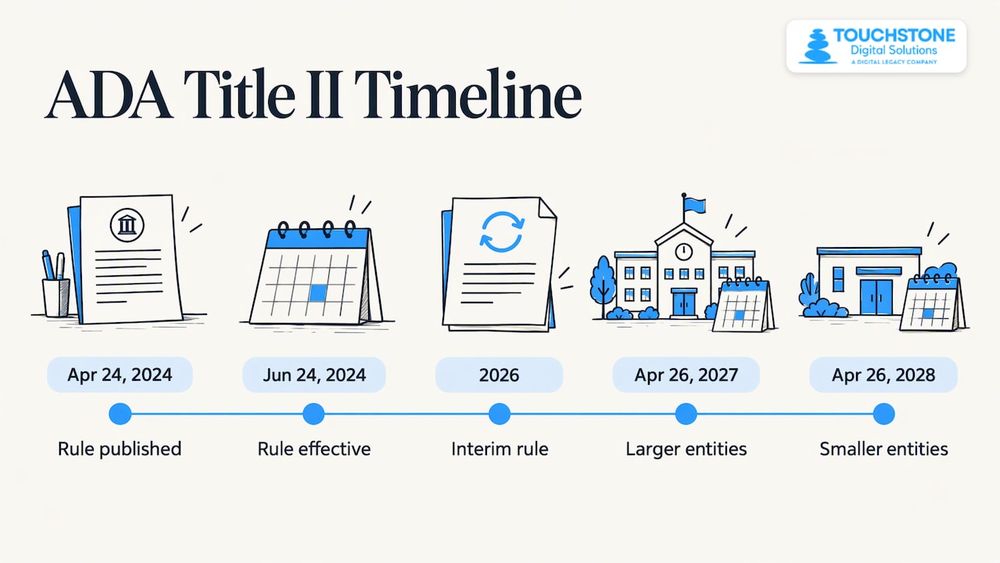
The Department of Justice published its final rule on web and mobile app accessibility for state and local governments on April 24, 2024, effective June 24, 2024. It requires covered web content and mobile apps to meet WCAG 2.1 Level A and AA. Public school districts and public colleges and universities are state or local government entities, so this is the rule most K-12 and public higher-ed administrators hear about. The DOJ compares inaccessible web content to stairs that keep wheelchair users out of a government building, and says WCAG 2.1 AA gives public entities concrete standards to meet their obligations.
The rule lists five exceptions, among them archived web content and certain preexisting documents. It also allows less than full compliance only where it would cause a fundamental alteration or an undue financial and administrative burden, and even then the entity must do everything short of that to give people with disabilities the maximum benefit. Digital history archives are a place where the archive exception comes up, but a new display built today is a poor candidate for it. Treat new content as in scope.
The deadlines have also moved. A 2026 interim final rule extended the compliance dates: entities with a population of 50,000 or more now have until April 26, 2027, and smaller entities and special district governments until April 26, 2028. Check ada.gov for the latest before you set a project timeline.
Section 508 for federal agencies and federally connected work
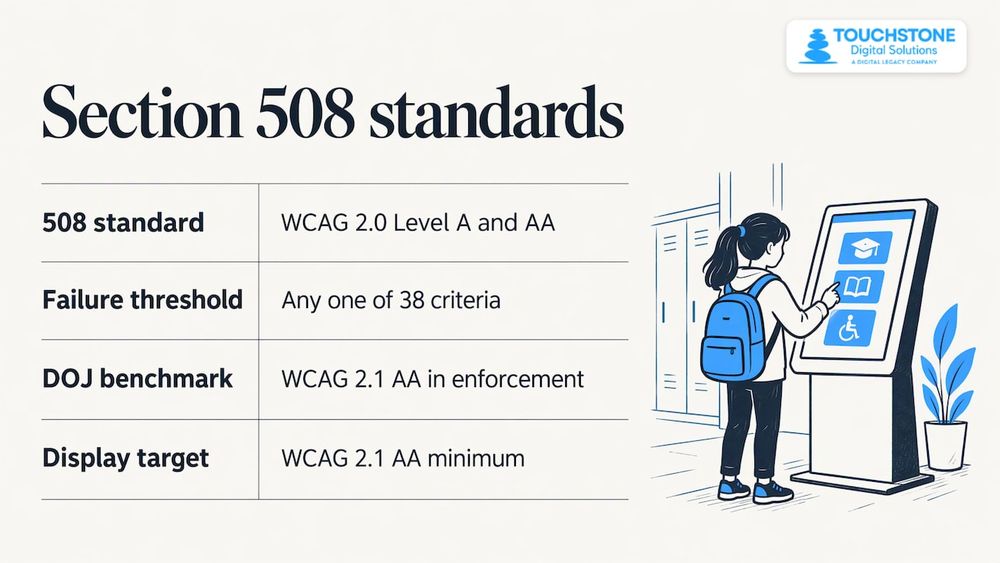
Section 508 of the Rehabilitation Act binds federal agencies, and the Revised 508 Standards incorporate WCAG 2.0 Level A and AA for user interface components and content. Section508.gov states that these standards apply to both web and non-web content, and that a page failing even one of the 38 applicable criteria does not conform. A multi-step process fails if any single step fails. Schools commonly borrow the 508 test methods even when they are not directly bound, because they are public and detailed.
The ADA itself does not name WCAG for every situation. Even so, the DOJ has used WCAG 2.1 AA as its benchmark in recent enforcement, according to the same checklist. The sensible target for a new display is WCAG 2.1 AA at minimum, which is what Touchstone builds to.
This article is general information, not legal advice. If you have a specific obligation, such as a state requirement or a complaint on file, your district’s counsel or compliance officer is the person to ask.
How to check a display before it goes on the wall
Accessibility is not a stamp you earn once. The Section508.gov guidance treats testing as something done across the whole project: evaluate design mockups for color contrast, run automated and manual tests, test full user flows with assistive technology and testers with disabilities, and hold back a release that has critical failures.
Here is a routine you can run with your team.
- Review the design draft for contrast. Check every text and background pair, especially in school colors, before anything is built.
- Check the controls. Are buttons large, spaced out and labeled? Does every swipe have a visible button alternative?
- Walk the main paths. Search for an athlete, open a record, play a video, go back home. Each should work without a complex gesture.
- Check media. Videos need captions, and nothing should depend on sound alone.
- Stand and sit. Test with a seated person, a person of short stature, and a person using a cane or walker. Confirm screen height and approach space.
- Test with assistive technology and people who use it. Automated scanners are a first step, and manual testing by experts, including people with disabilities, confirms or dismisses what a scan finds and surfaces what tools miss.
- Check the online version. If alumni can browse the same content on the web, it needs the same review.
- Repeat after updates. New inductees, photos and videos are new content. Check them against the same list.
The Access Board’s Baseline for Web offers tool-neutral tests that spell out what to check and how to judge the result. They map to Section 508 and are a useful reference for your own checklist.
Promo
A display is only as accessible as the team behind it. Touchstone Digital Solutions, a family-run company in Bedford, NH, designs each Digital Hall of Fame, record board, trophy case, donor wall and yearbook archive around your school’s colors, logo and story, with Emmy-nominated UI/UX design and accessibility built to ADA (WCAG 2.1) standards. We handle commercial touchscreen hardware, content setup and data migration, and we provide staff training and unlimited 24/7 support. More than 350 schools and organizations already use our displays.
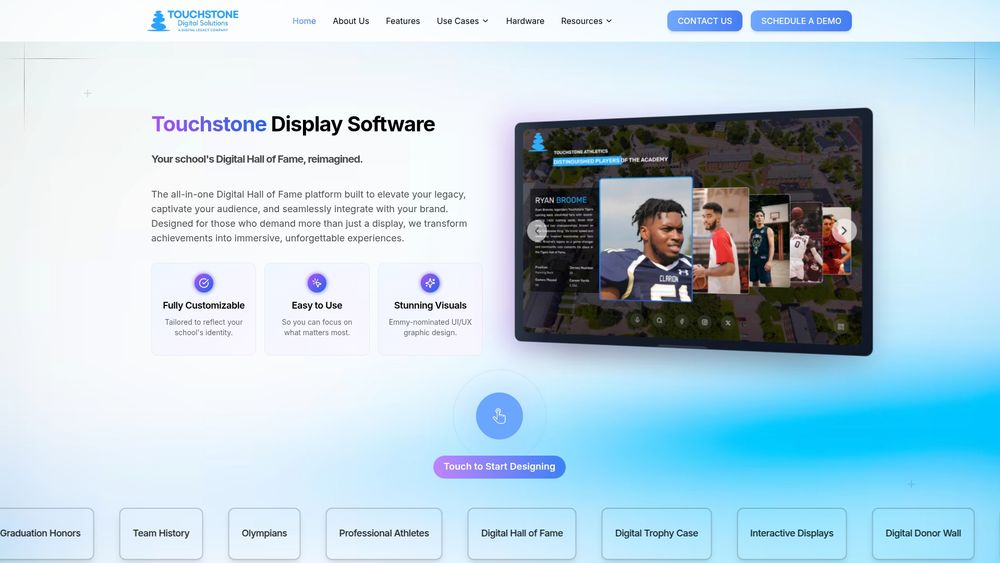
If you are planning a project, start with our touchscreen software and hardware bundles, or look at the Digital Athletic Hall of Fame to see how a full recognition display comes together.
Perspective
Recognition only works when everyone can take part in it. A student who uses a wheelchair, a grandparent with low vision and an alumnus who is deaf all deserve to find a name, read a story and watch a championship video the same way anyone else does.
That is why we treat accessibility as part of the design, not a feature added at the end. Our UI/UX designers come from the gaming industry, and our work has been Emmy-nominated. We use that craft to make a display that is beautiful and clear at the same time. Because every display is custom-designed around your colors and logo, we can build contrast and readable layouts into your brand from the start instead of fighting it.
We also work directly with you as a family-run company, from content setup and data migration to training your staff and supporting you around the clock. Accessibility lasts only if the people adding new inductees and records know how to keep it that way, and we are there for that.
Our advice: ask for WCAG 2.1 AA in writing, involve people with disabilities early, and plan the room, not just the screen.
Gardner Gendron
Design habits that keep a display accessible over time
A display launches once and then changes for years. These habits keep it accessible as it grows.
- Write alt text for every photo. An athlete’s portrait needs a short description, not a file name. Plan time for it when you migrate old yearbook photos.
- Keep text short. Short bios and plain language help visitors with cognitive or reading disabilities, and they help everyone else too.
- Do not rely on color alone. If a record board marks a new record in gold, add a label or icon.
- Keep navigation consistent. The home and back buttons should sit in the same place on every screen.
- Set time limits generously. If a screen resets after inactivity, give visitors enough time and a warning.
- Check new uploads. A beautiful new video with no captions undoes good work. Make captions part of your intake checklist.
Our interactive display design principles guide covers layout and navigation in more detail, and our touchscreen lobby setup tutorial walks through installation in a K-12 school.
FAQ
Is WCAG legally required for school touchscreen displays?
For public schools and universities, the DOJ’s ADA Title II rule requires web content and mobile apps to meet WCAG 2.1 Level A and AA, with compliance dates now set in 2027 and 2028 depending on the size of the entity. Federal agencies follow Section 508, which uses WCAG 2.0 A and AA. Your counsel can tell you how these apply to your specific displays.
Should I choose WCAG 2.1 or 2.2?
The ADA Title II rule names 2.1, so 2.1 AA is the legal baseline for public entities. WCAG 2.2 adds criteria such as minimum target size, and building to 2.2 where you can gives you extra room as standards evolve.
Which level should a school display meet?
Level AA. It includes all Level A criteria and is the level named in the DOJ rule. Level AAA is rarely achievable across every part of an experience, but borrowing AAA practices for key text is a good habit.
Does a keyboard-only test cover a touchscreen?
No. W3C explains that keyboard operability alone is not enough, because some users rely entirely on pointing devices. Test touch with single taps, and test assistive technology and alternative input as well.
Who should test the display?
Use a mix of automated tools, accessibility experts and people with disabilities who use assistive technology. Each finds problems the others miss.
Touchstone Digital SolutionsDiscuss Your Display’s AccessibilityTalk with Touchstone about an interactive recognition display designed around your school’s story and ADA (WCAG 2.1) standards.TTouchstone Digital SolutionsEmail Touchstoneinfo@touchstone-ds.com+1( 603) 361-7541
Sources
- Web Content Accessibility Guidelines (WCAG) 2.2, W3C
- Nondiscrimination on the Basis of Disability; Accessibility of Web Information and Services of State and Local Government Entities, DOJ
- Title II Regulation Supplement, DOJ
- Extension of Compliance Dates for Title II, DOJ
- Understanding Guideline 2.5: Input Modalities, W3C
- Understanding Success Criterion 2.5.1: Pointer Gestures, W3C
- Understanding Success Criterion 2.5.8: Target Size (Minimum), W3C
- Understanding Success Criterion 1.4.3: Contrast (Minimum), W3C
- Revised 508 Standards and 255 Guidelines, U.S. Access Board
- Original 508 Standards (2000), U.S. Access Board
- Self Contained, Closed Products (1194.25), U.S. Access Board
- Applicability & Conformance Requirements, Section508.gov
- Incorporating ICT Accessibility Testing into the Lifecycle, Section508.gov
- Baseline for Web, U.S. Access Board
- The Must-Have WCAG Checklist