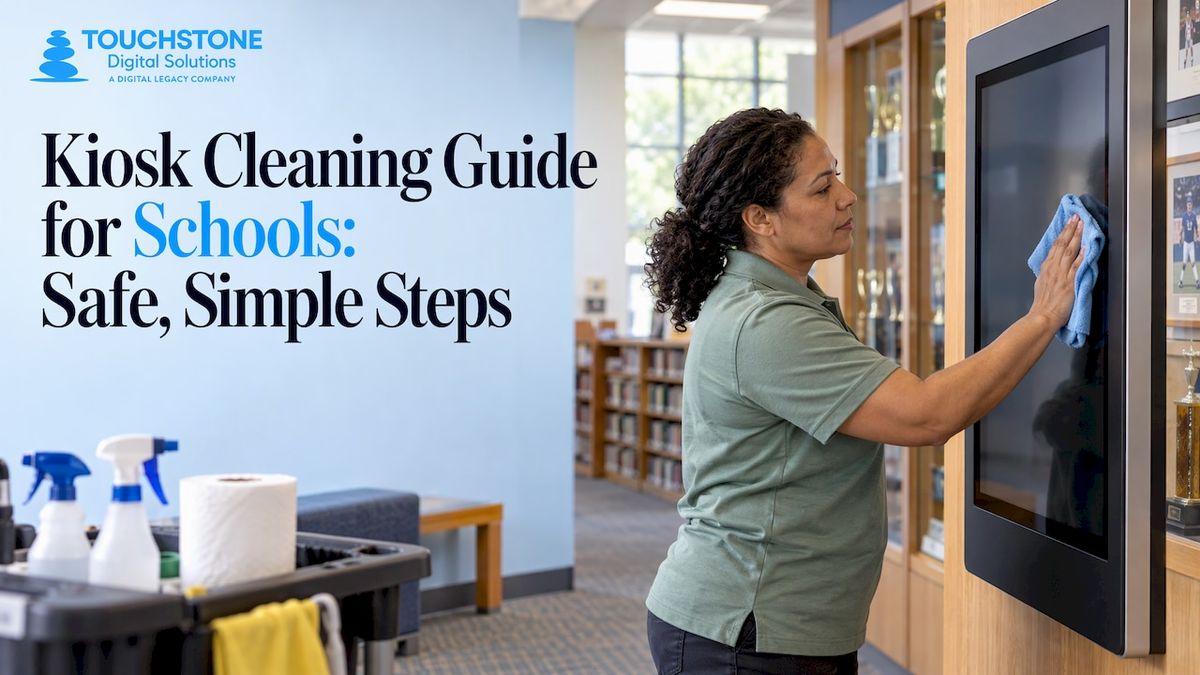
To clean a school kiosk touchscreen, power it down, put a little cleaner on a soft microfiber cloth (never on the screen), wipe in one direction, and let the surface air-dry. Then check your manufacturer’s instructions before you reach for any disinfectant. A hallway kiosk is touched by hundreds of hands a week, and a consistent five-minute routine keeps it clear, responsive and welcoming for the students, alumni and visitors who use it.
This guide covers what to use, what to avoid, how often to clean, and how to disinfect during flu season, using guidance from the CDC and from universities and school districts that manage shared screens every day.
Touchstone Digital SolutionsKeep School Recognition Displays ReadyExplore Touchstone’s custom touchscreen displays for schools, with content setup, hardware, and staff training handled as part of the project.Schedule A Demo
TL;DR
- Power the display off, apply cleaner to a clean microfiber cloth rather than the screen, wipe gently, and let it dry fully.
- Many schools and campuses use 70% isopropyl alcohol or a disinfecting wipe on hard electronic surfaces, but always follow your display maker’s instructions first.
- Skip abrasive pads, bleach, ammonia, aerosol sprays and anything that lets liquid seep into edges, vents or buttons.
- Wipe frequently touched kiosks at least once a day and clean visible smudges right away. Keep a simple log.
- Cleaning removes dirt. Disinfecting needs an approved product and its full contact time.
Table of Contents
- Why a Kiosk Needs Its Own Cleaning Routine
- What You Need Before You Start
- Step-by-Step: How to Clean a Touchscreen Kiosk
- Safe Products for Touchscreens
- Cleaning Versus Disinfecting
- How Often to Clean School Kiosks
- Protecting the Display and the People Cleaning It
- Troubleshooting Common Problems
- Our Perspective
- Building a Kiosk Cleaning Protocol for Your School
- Planning a New Display? Start With Touchstone
- FAQ
- Sources
Why a Kiosk Needs Its Own Cleaning Routine
A touchscreen is not a desk. It has sensitive coatings, sealed edges, and electronics sitting a fraction of an inch behind the glass. The same wipe that is perfect for a lunch table can leave streaks, haze or a damaged edge on a display.
A shared screen also collects more than fingerprints. CDC school guidance lists shared electronics such as keyboards among the frequently touched items typically sanitized daily, and its community-facility guidance names tablets, touch screens, keyboards and remote controls among the shared equipment to clean and disinfect after use by an ill person. A trophy case kiosk by the gym, a donor wall in the lobby and a record board outside the athletic office all fit that description.
There is a bright side. A well-cared-for display looks sharp in the photos, tours and open houses where your school shows off its history. Clean glass is part of the recognition. The athletes, alumni and donors on the screen deserve a clear view.
What You Need Before You Start
Keep a small kit near each display, or on a custodial cart, so the job is quick and nobody improvises with paper towels.
- Two or three clean, non-linting microfiber cloths (one for cleaning, one for drying, one spare)
- Mild soap and water in a small container, or a spray bottle you will only use to dampen the cloth
- 70% isopropyl alcohol, or pre-moistened wipes your IT team has approved for electronics
- An EPA-registered disinfectant, if your district’s protocol calls for one
- Disposable gloves and a trash bag
- A cleaning log (paper or digital)
Troy University’s IT guidance recommends lint-free or microfiber cloths and warns against aerosol sprays, bleach and abrasive cleaners. That is a good rule of thumb for any campus kiosk.
Step-by-Step: How to Clean a Touchscreen Kiosk
This routine blends the steps published by Towson University and the Davis Joint Unified School District, two organizations that clean shared school technology at scale.
- Power down. Turn the display off. If it is safe and practical, unplug it. This prevents phantom taps, stops you from triggering the content, and lets you see smudges more clearly on a dark screen.
- Dust first. Wipe loosely with a dry microfiber cloth to lift grit. Dragging grit under a damp cloth is how fine scratches happen.
- Dampen the cloth, not the screen. Spray or pour a small amount of cleaner onto the cloth. DJUSD’s guidance is to spray cleaner onto a microfiber cloth rather than the device. Wring out the excess so the cloth is damp, never dripping.
- Wipe gently. Work from top to bottom, using light pressure. Towson’s guidance for displays is to wipe top-to-bottom, and Promethean-style panel guides often add the same one-direction habit because it avoids pushing dirt back across the surface.
- Mind the edges. Keep liquid away from seams, speakers, vents, ports and buttons. Towson advises using as little product as necessary and keeping solutions out of crevices. The bezel and frame can be wiped the same way.
- Dry and air-dry. Follow with a dry cloth, then let any remaining moisture evaporate. DJUSD suggests allowing about five minutes before powering the device back on.
- Finish up. Discard gloves, wash your hands, and note the time in your log.
Safe Products for Touchscreens
There is no single answer that fits every display, which is why the best first move is always the manufacturer’s care instructions. The CDC says to follow the touchscreen manufacturer’s instructions first, and if none exist, alcohol-based wipes or sprays with at least 70% alcohol may be considered, dried thoroughly to prevent pooling.
Here is how the published guidance lines up.
| Product | What the guidance says | Good for |
| Dry microfiber cloth | Safe on virtually every display; Troy recommends lint-free or microfiber cloths | Daily dusting and fingerprints |
| Mild soap and water on a damp cloth | Recommended as a first step for visibly dirty surfaces by Capital Region BOCES | Smudges, sticky residue |
| 70% isopropyl alcohol on a damp cloth | Towson recommends it for classroom touch panels; Colgate permits wipes with 70% to 92% isopropanol for touch panels | Routine sanitizing |
| Disinfecting wipes (such as common household brands) | Troy says a disinfectant wipe or one with 70% alcohol can be used on hard, nonporous electronic surfaces, with the label’s contact time respected | Illness-season disinfection |
| Bleach, ammonia, hydrogen peroxide | Troy lists bleach among the products to avoid; Apple’s guidance excludes products containing bleach or hydrogen peroxide | Avoid on screens |
| Glass cleaner and direct spraying | Microsoft’s guidance prohibits glass cleaner and direct spraying on its touchscreens | Avoid on screens |
Notice that institutions do not all agree. One campus accepts household disinfecting wipes, another prefers only alcohol, a device maker says no disinfectant wipes at all. That is not a contradiction. Each is describing what its own coatings and seals can handle. If you are unsure about your own display, ask your vendor before you set a district-wide policy.
What to Keep Away From the Screen
- Abrasive pads, scrub brushes and scouring powder. Sharp objects and abrasive materials near the screen edges can scratch the surface and the seal.
- Paper towels and tissues, which can leave lint and fine scratches. Microfiber is the better habit.
- Aerosol sprays aimed directly at the panel, which let liquid slip behind the bezel.
- Mixing cleaners. Capital Region BOCES notes that bleach and other cleaning products must not be mixed, a rule that protects the person holding the cloth.
- Submerging or soaking any part of the device. Towson says not to submerge electrical products.
Cleaning Versus Disinfecting
These two words get used as if they mean the same thing, and the difference matters when parents or the nurse’s office ask what you are doing.
Cleaning removes dirt, oils and visible contamination. Disinfecting uses a chemical product to destroy germs. The CDC’s school guidance for flu is to clean with a household cleaner, rinse, and follow with an EPA-registered disinfectant labeled effective against influenza A, then follow the label’s contact time. On electronics, it says to make sure the item can withstand liquids and to use multiple wipes if needed to keep the surface wet for the full time.
In practice, here is a clean routine for a kiosk:
- Clean first with a damp microfiber cloth and mild soap solution if the screen is visibly dirty. Dry it.
- Disinfect with an approved wipe or a cloth dampened with 70% isopropyl alcohol.
- Keep the surface visibly wet for the product’s stated contact time. Troy notes that more than one wipe may be needed to do that.
- Let it air-dry, then power the display back on.
If the label says to rinse, or the surface is a food-contact surface, follow the label. If your district has an approved list of disinfectants, use that list. Capital Region BOCES describes bleach or 70% alcohol as fallback options when an EPA-approved disinfectant is unavailable, which is a useful backup for your protocol, though your own product list should come first.
During a Flu or Illness Outbreak
You do not need to do something dramatic. CDC says that during a flu outbreak, special processes such as fumigation and repeated cleaning of walls and ceilings are not recommended, and that standard school cleaning and disinfection practices are enough. For your kiosks, that usually means:
- Keeping the daily routine on schedule
- Adding a midday wipe of high-traffic displays near the main office, gym or cafeteria
- Cleaning shared touchscreens after use by someone who is ill
- Providing hand sanitizer or a handwashing reminder near the display
The CDC’s school flu guidance is dated 2016, and its community-facility touchscreen guidance dates to 2020. Check with your local health department or the current CDC pages for the latest recommendations when an outbreak is under way.
How Often to Clean School Kiosks
The published guidance gives you a solid baseline.
- Daily: CDC guidance describes frequently touched objects as typically sanitized daily. Capital Region BOCES requires frequently touched surfaces to be cleaned and disinfected at least once a day, after students leave.
- Immediately: CDC says visibly soiled surfaces should be cleaned right away.
- More often when needed: BOCES calls for frequent cleaning of high-touch areas throughout the school when a symptomatic, lab-confirmed COVID-19 case was present.
- Per the manufacturer: Troy says touchscreens in shared and public locations should be frequently cleaned and disinfected in accordance with manufacturer recommendations.
A simple schedule that works for many schools:
| Kiosk location | Suggested routine |
| Main lobby or front office | Quick dry wipe each morning, full clean and disinfect after dismissal |
| Gym, trophy case or athletic hallway | Wipe after games, events and tournaments, plus a daily clean |
| Library or media center | Daily clean and disinfect |
| Alumni weekend or open house | Wipe before doors open and again midday |
These are suggested starting points built on the published daily baseline, so adjust them to match how heavily each display is used.
Who Should Do It
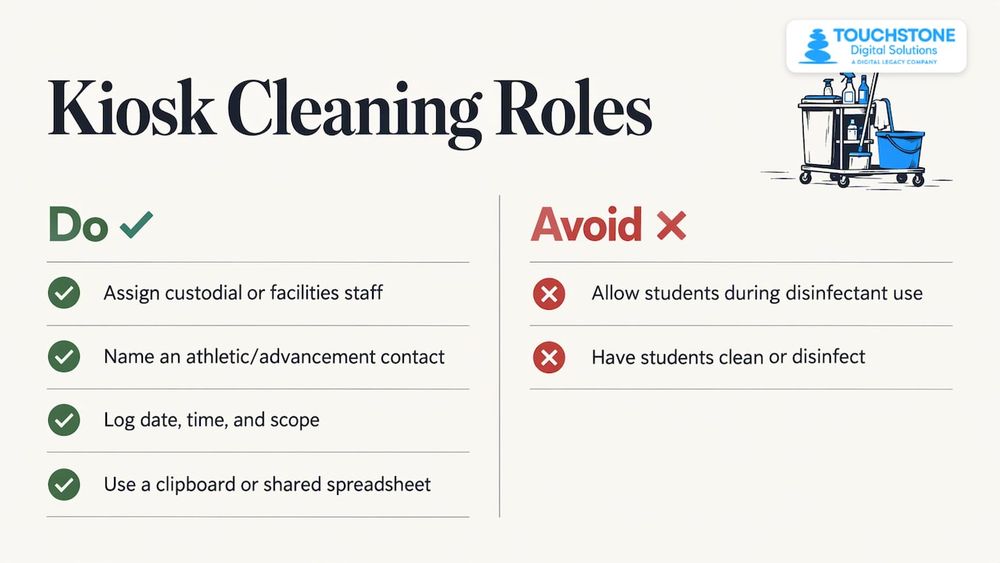
Assign the job to custodial or facilities staff, or to a named person in the athletic or advancement office. Capital Region BOCES says students should not be present when disinfectants are used and should not take part in cleaning or disinfection. It also recommends a log recording the date, time and scope of cleaning. A clipboard hung next to the supply cart, or a shared spreadsheet, is plenty.
Protecting the Display and the People Cleaning It
Most damage to a touchscreen kiosk comes from liquid in the wrong place. A few habits prevent it.
- Apply liquid to the cloth every time. Towson says not to spray directly on products.
- Squeeze the cloth out so it is damp but not wet. Colgate’s policy describes the target as a surface that looks visibly damp without pooling, then air-dried.
- Do a final pass around the bezel and the bottom edge, where drips collect.
- Read the label of every disinfectant. Capital Region BOCES says staff must follow the label for concentration, dilution, application method, contact time and PPE.
- Wear gloves, work in a ventilated area, and wash your hands afterward.
If a kiosk is behind protective glass or sits in a rugged enclosure, the same rules apply to the outer surface. Our guide to tempered glass kiosks covers what to know about that outer layer, and our piece on anti-glare display glass explains how coatings affect what you see (and why gentle wiping matters). If you also worry about tampering or vandalism, our kiosk security guide for schools pairs well with this routine.
Troubleshooting Common Problems
- Streaks after wiping. Usually too much product or a cloth that is saturated. Re-wipe with a clean, dry microfiber cloth, using a single direction.
- Smudges that won’t lift. Try a cloth lightly dampened with mild soap and water, then dry. Avoid pressing harder.
- Haze or discoloration. Stop using that product and check your manufacturer’s guidance. This is the reason to confirm what your panel tolerates before you buy supplies in bulk.
- Touch response feels off right after cleaning. Moisture is probably still on the surface or at the edge. Power the display down, dry it thoroughly and wait a few minutes.
- Dust in the corners. Use a dry microfiber cloth or soft brush, or the nozzle of a vacuum, rather than liquid.
If a problem persists, our customers can contact our support team, which is available 24/7.
Our Perspective
At Touchstone, we build displays that are meant to be touched. A recognition kiosk earns its place in the lobby when students and alumni walk up, tap a name, and linger. That interaction is the point, and a clean screen invites it.
We design every display around your school’s colors, logo and story, and we treat the screen as part of that story. A smudged panel dims the face of a state champion or the name on a donor wall. A simple routine, a soft cloth, and a few minutes after dismissal keep your history looking the way you designed it.
Our approach is to handle the whole project for you: commercial touchscreen hardware, custom wall wraps, content setup, staff training and ongoing support. When you have a question about caring for your display, you are talking to a family-run team that knows the build, not a call center. Our aim is that your maintenance is a wipe-down and nothing more, with content updates handled in the cloud.
Build the cleaning routine into your custodial checklist once, and then it fades into the background. Your athletes and alumni will notice only what is on the screen.
Gardner Gendron
Building a Kiosk Cleaning Protocol for Your School
A written protocol takes an hour and saves arguments for years. Here is a simple outline you can adapt.
- List every display. Note the location, size and who is responsible for it.
- Record the manufacturer’s care instructions. Put them in a binder or shared folder.
- Approve your products. Name one cleaner and one disinfectant that your IT team and custodial staff agree on, with the label’s contact time written beside it.
- Set the frequency. Daily as a baseline, with extra wipes around events and during illness season.
- Assign the job and the backup. One person, plus a substitute.
- Keep the log. Date, time, who cleaned, and what was done.
- Review once a year. Update your list when you add displays or change products.
If you are still planning your installation, it helps to think about cleaning access at the design stage. Display height and reach matter for visitors, and for staff wiping the screen. Our article on ADA compliant kiosks walks through reach ranges, and our interactive display design principles show how layout and screen placement shape how a kiosk gets used. If you are standing up a new one, our touchscreen lobby software setup tutorial is a good companion.
Planning a New Display? Start With Touchstone
If your school is adding or replacing a recognition display, we handle the project from start to finish. Our wall mounted and floor standing touchscreen bundles include commercial touchscreen hardware. Wall mounted bundles are listed at $3,100 to $4,900 one-off, and floor standing bundles at $3,550 to $4,300 one-off.
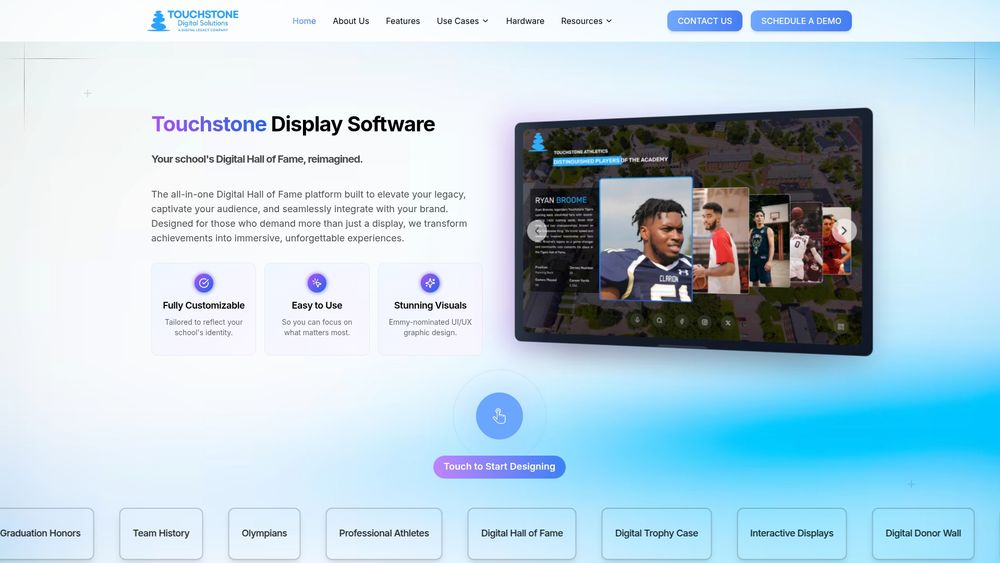
Pair the hardware with our touchscreen software for a Digital Hall of Fame, trophy case, record board, donor wall or yearbook archive, all designed around your school’s brand. We also provide staff training and 24/7 support. Visit Touchstone Digital Solutions to start the conversation.
FAQ
Can I use disinfecting wipes on a school kiosk touchscreen?
Often yes, but check your display’s instructions first. Troy University says a Clorox disinfectant wipe or a wipe with 70% alcohol may be used on hard, nonporous electronic surfaces, as long as the label’s contact time is respected. Some device makers prohibit disinfectant wipes on their screens, so the manufacturer’s guidance comes first.
What is the safest everyday cleaner for a touchscreen?
A clean, dry microfiber cloth handles most fingerprints. For more, dampen the cloth with mild soap and water, or with 70% isopropyl alcohol, which Towson University recommends for classroom touch panels. Always apply the liquid to the cloth, never to the screen, and dry the surface afterward.
How often should a school clean its touchscreen kiosks?
At least once a day for frequently touched displays, which matches the daily baseline in CDC school guidance and the Capital Region BOCES protocol. Clean visible smudges and spills right away. Add extra wipes after events, or when illness is circulating.
Do we need special disinfection steps during flu season?
No. CDC says standard school cleaning and disinfection practices are sufficient during a flu outbreak, and special measures such as fumigation are not recommended. Use an EPA-registered disinfectant labeled for influenza A, follow its contact time, and keep the screen wet for that time.
Should students help clean the kiosk?
It is best left to staff. Capital Region BOCES says students should not be present when disinfectants are used and should not participate in cleaning or disinfection. Students can help by using hand sanitizer before touching shared screens.
Touchstone Digital SolutionsQuestions About Your School Display?Talk with Touchstone about interactive recognition displays, content migration, or the hardware and setup involved in a school project.TTouchstone Digital SolutionsEmail Touchstoneinfo@touchstone-ds.com+1( 603) 361-7541
Sources
- CDC: How to Clean and Disinfect Schools to Help Slow the Spread of Flu
- CDC: Interim Recommendations for US Community Facilities
- Towson University: Clean Classroom Technology Equipment
- Troy University IT: Cleaning Computers and Electronics
- Colgate University: Cleaning and Sanitizing Electronics
- Capital Region BOCES: Cleaning and Disinfection Protocols
- Davis Joint Unified School District: Cleaning
- Apple Support: How to clean your Apple products
- Microsoft Support: Clean and care for your Surface